

Notifications tell you something has happened on your project, without your having to come back and check. Before you accept, it is worth knowing exactly what will be sent.
One thing is worth saying up front: your browser only asks once. If you refuse, it records that refusal and will not ask again — no setting on our side can make it reconsider.
The five notifications, and nothing else
These five are all we send. There is no newsletter, no sales follow-up, no promotional notification.
They are written in French, whichever language you read the site in — the English wording below is only there to tell you what each one means.
- Nouveau message — “Vous avez reçu un message.” (You have received a message.)
- Nouvelle invitation — “Un projet vous attend.” (A project is waiting for you.)
- Devis à signer — “Un devis attend votre signature.” (A quote is waiting for your signature.)
- Rendez-vous confirmé — “Votre rendez-vous est confirmé.” (Your appointment is confirmed.)
- Rendez-vous annulé — “Votre rendez-vous a été annulé.” (Your appointment has been cancelled.)
Why they say so little
You will have noticed: not one of those sentences contains a name, an amount or an excerpt of a message. That is not carelessness, it is deliberate.
A notification appears on a locked screen, on a train or on a desk, where anyone can read it. A quote amount or a professional's name would be exposed to people who have nothing to do with your project.
The detail therefore always sits behind the click, in your account area, protected by your session. The notification tells you to look; it does not tell you what at.
One setting per device and per browser
This is the part that surprises people most. The permission does not belong to your account, but to the browser on the device where you granted it.
Accepting on your computer therefore changes nothing on your phone, and the other way round. You have to accept on every device where you want to be told. Likewise, if you use two browsers on the same machine, the setting on one does not carry over to the other.
How to turn them on
Two routes lead to the same place:
- the bell at the bottom of the left-hand menu, with its “Activer les notifications” button;
- the Notifications sur cet appareil toggle, in your Settings.
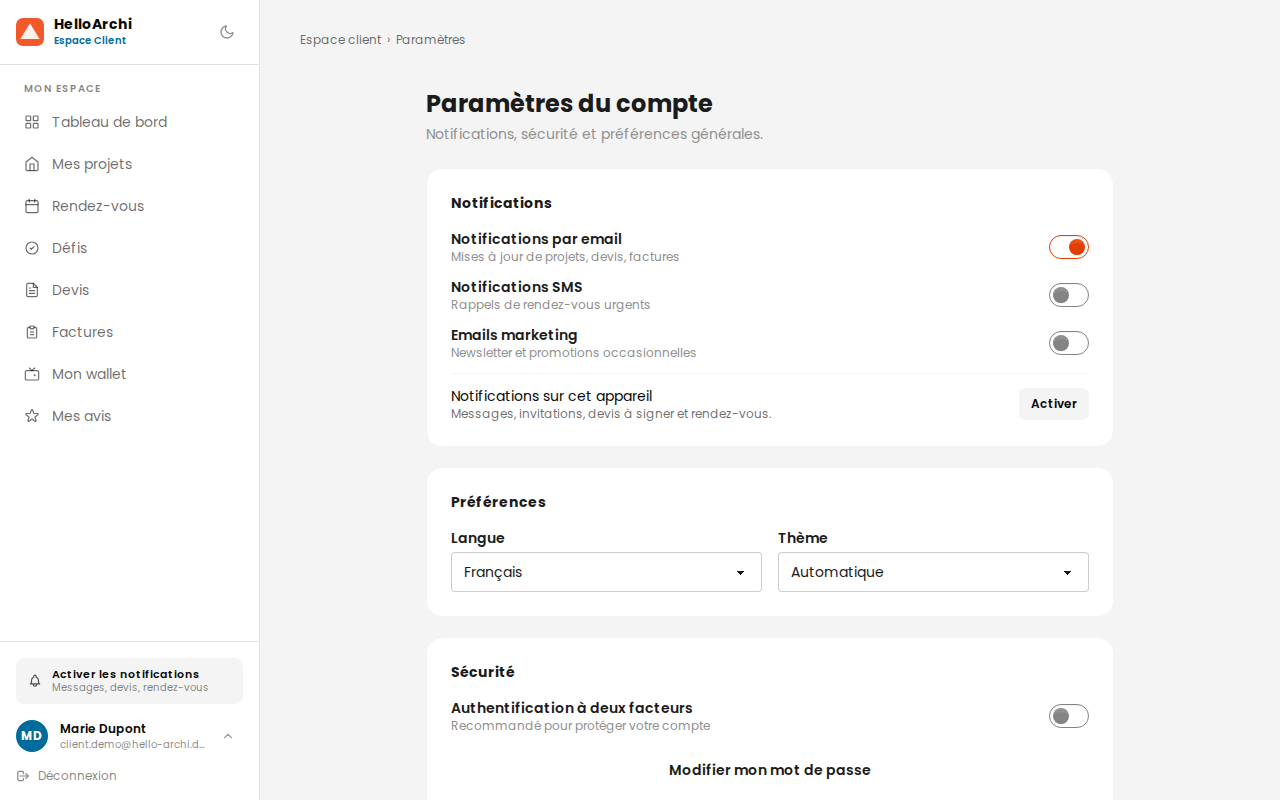
Your browser will then ask you to confirm. The bell disappears as soon as you have answered, whether you accepted or refused: it has nothing left to ask. That is not a fault.
How to turn them off
The same toggle, in your Settings, switches them off. You do not need to go through your browser settings, and nothing about the choice is final: you can switch them back on whenever you like.
If you have already refused
That is the one case where the button is no longer enough, since the browser will not ask again. You have to undo that choice in the browser's own settings, which takes seconds: how to turn notifications back on after refusing them.