

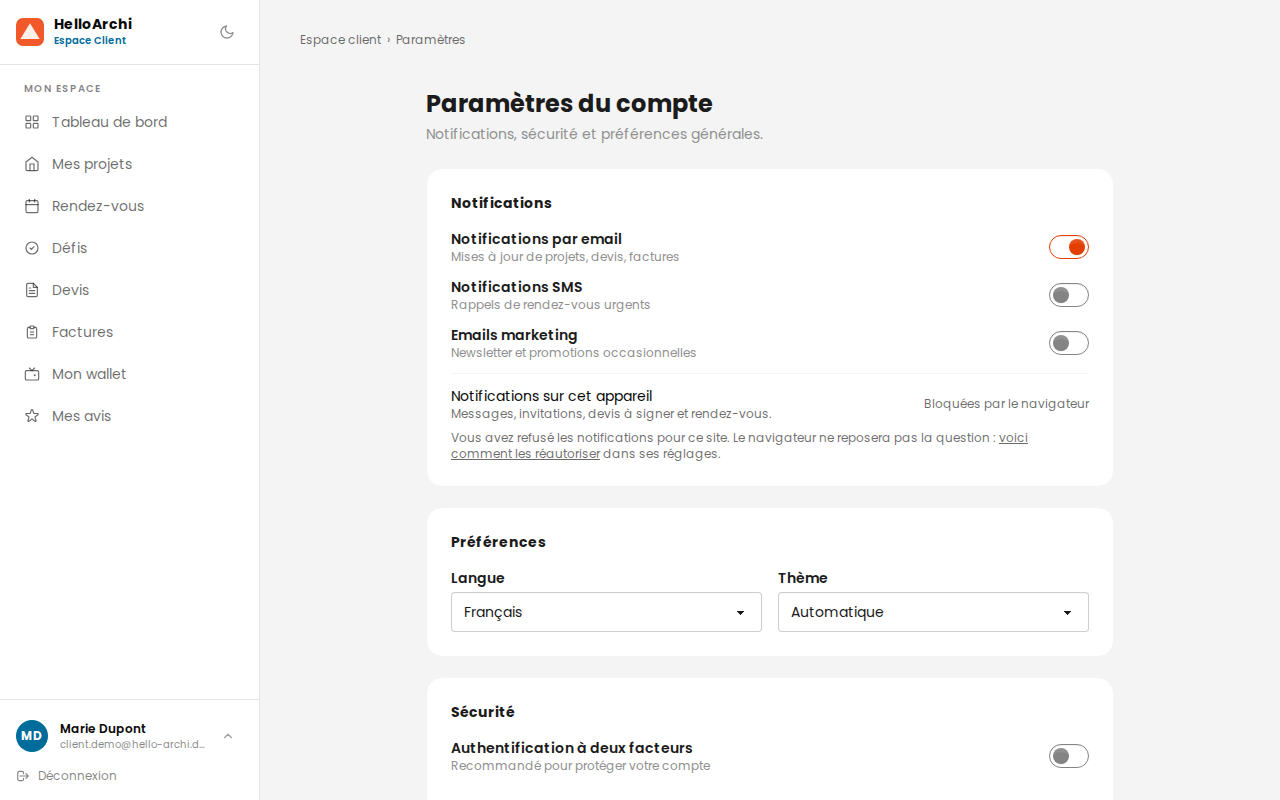
When you refuse notifications for a site, or dismiss the prompt several times in a row, your browser records that refusal and never asks again.
This is not a Hello Archi setting: it is a browser protection, and no website can work around it. It is also why the notifications button disappears from your account area — there would be nothing left for it to ask.
The good news: the choice takes seconds to undo, in your browser settings. Once the permission is back to Ask, the button reappears on its own.
Google Chrome and Microsoft Edge (computer)
- Open any Hello Archi page.
- Click the icon to the left of the site address, in the address bar.
- Find the Notifications row.
- Choose Ask — or click Reset permission.
If the Notifications row is missing from that small menu, go through the full settings instead: in the address bar, type chrome://settings/content/notifications (or edge://settings/content/notifications on Edge). Find Hello Archi in the list of blocked sites and remove the entry.
Mozilla Firefox (computer)
- Open any Hello Archi page.
- Click the icon to the left of the site address.
- On the Send Notifications row, click the cross to clear the block.
Another route: Settings menu, then Privacy & Security, Permissions section, and the Settings… button next to Notifications. Select Hello Archi and remove the site.
Safari (Mac)
- Safari menu, then Settings.
- Websites tab, Notifications in the left-hand column.
- Select Hello Archi and choose Ask, or remove the site from the list.
On a phone
Android — in Chrome, tap the three dots, then Settings, Site settings, Notifications. Find Hello Archi among the blocked sites and clear the setting.
iPhone and iPad — website notifications require the site to be added to your Home Screen first. From Safari, tap the share button, then Add to Home Screen. Open Hello Archi from that icon: only then does the permission prompt become possible. If you have already refused it, remove the icon from your Home Screen and start again.
What happens next
Go back to your account area. The notifications button — labelled Activer les notifications — reappears at the bottom of the left-hand menu, and the Notifications sur cet appareil toggle becomes active again in your Settings. If nothing changes, reload the page.
Click either one: your browser will then ask you again, and you can accept.
Good to know
- The setting belongs to each browser and each device. Accepting on your computer changes nothing on your phone, and the other way round.
- In private browsing, the permission is not kept from one session to the next.
- You can turn notifications off at any time from your Settings, without going through your browser settings.
- Our notifications never contain a name, an amount or an excerpt of a message — only the type of event, so that a locked screen reveals nothing.